Requires

Blender 5.0+

Install on top of Blender 5.0 or any newer release.

Install source

Zip package

Download the latest Moldboxer extension zip and install it from disk in Blender. Do not unzip the file.

Installation
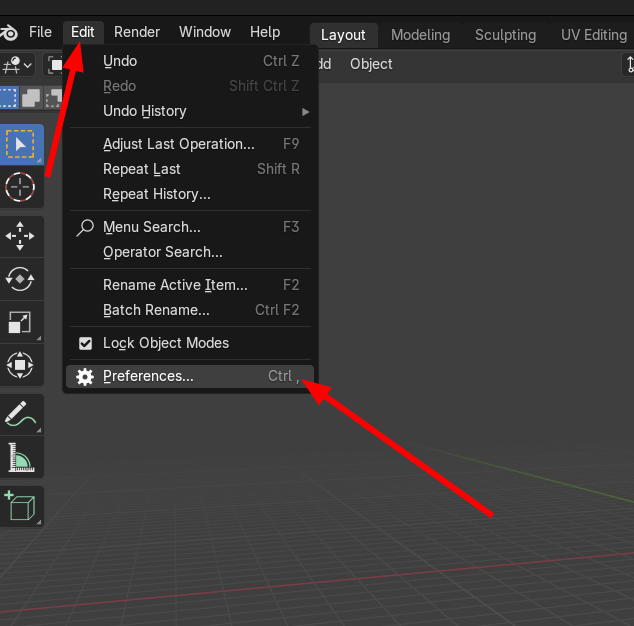
Set up the add-on in Blender preferences

01

Open Preferences

  • Use Blender 5.0 or later.
  • Windows and Linux: Edit > Preferences.
  • macOS: Blender > Preferences.
Blender Edit menu with Preferences highlighted.
02

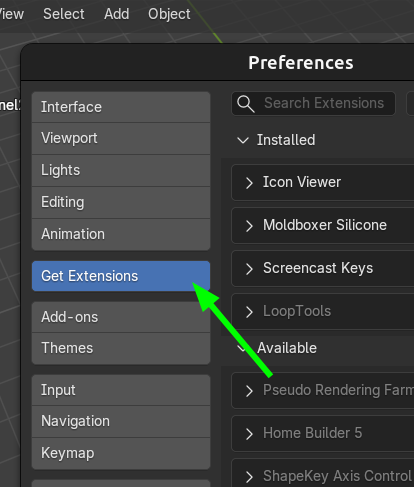
Go to Get Extensions

  • Use the left sidebar and click Get Extensions.
Blender Preferences with Get Extensions selected.
03

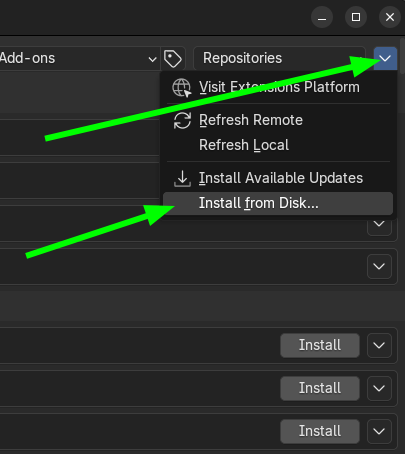
Install from Disk

  • Click the top-right arrow and choose Install from Disk.
  • Select the downloaded .zip file (do not unzip) and confirm installation.
Blender Get Extensions menu with Install from Disk option.

First Mold

Get the panel ready and load your model

Once the extension is installed, the rest of the workflow happens from the Moldboxer Silicone panel in Blender's right sidebar.

Find the Mold panel

After installation, the Moldboxer panel appears on the right side of Blender. If the sidebar is collapsed, expand it and open the Moldboxer Silicone tab.
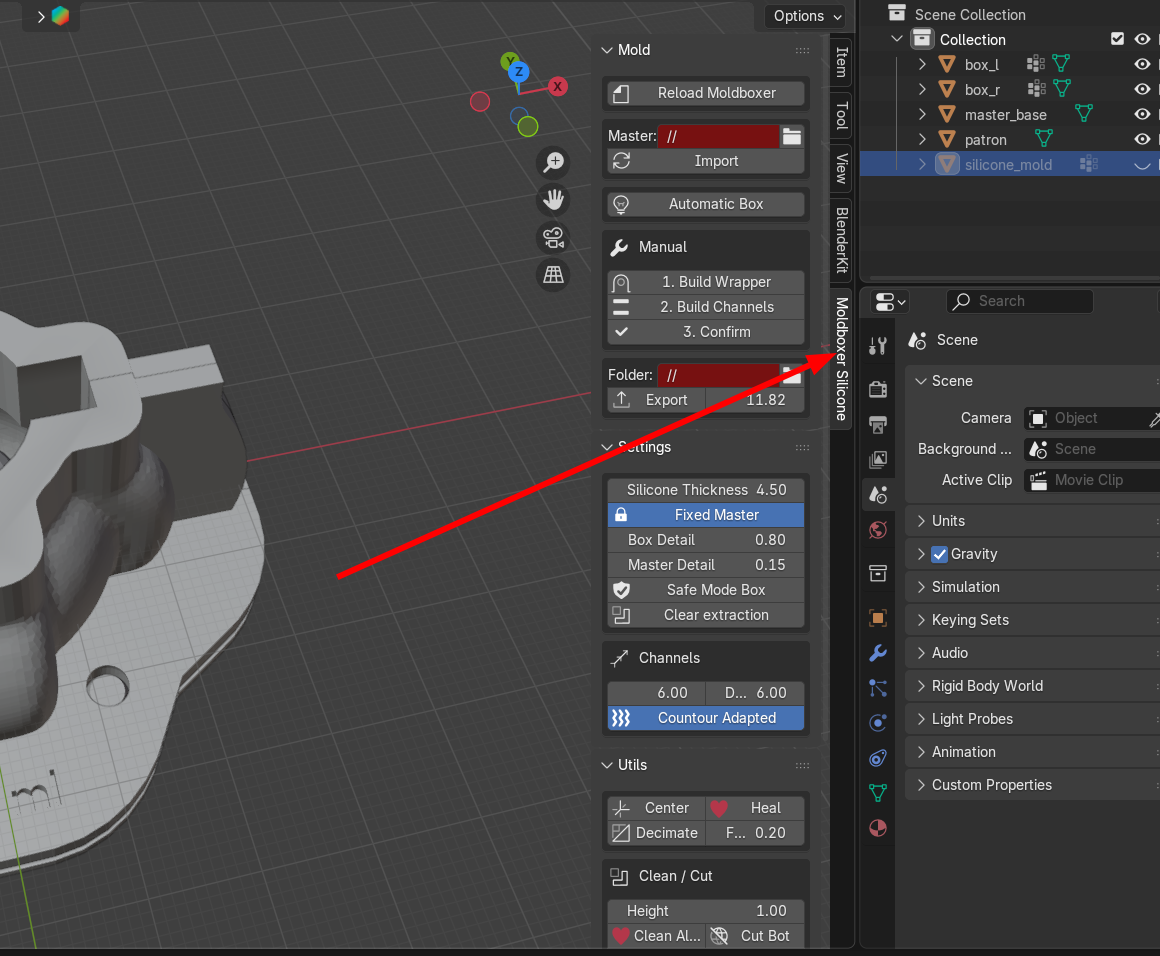
Moldboxer Silicone panel visible in Blender sidebar.

Start a new project

Press the New button in Blender to begin with a fresh project before importing your master model.
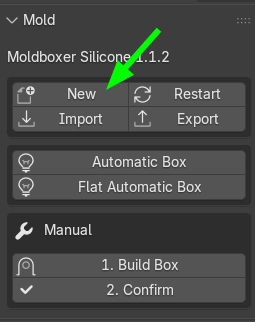
Blender start screen with the New button for creating a fresh project.

Import the master model

Choose the 3D model you want to mold, set the file path in the add-on panel, and click Import.
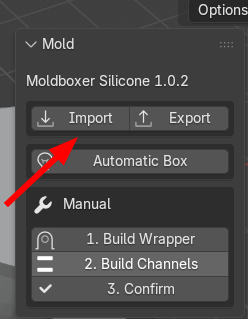
Moldboxer panel with the Import button highlighted.

Modes

Choose automatic or manual mold creation

Moldboxer offers a fast one-click path for simple meshes and a two-step manual path when you need more control.

Automatic Box Mode

  • Click Automatic Box to generate the full mold using the current settings.
  • Works best for basic, centered models.
  • Best for fast, simple mold creation.

Manual Mode

  • Use Build Box and Confirm for more control.
  • Adjust the top input position and scale after building the box.
  • Manual mode is better when you need to fine-tune placement before final generation.

Manual Mode

Two steps for a controlled build

Use manual mode when the model needs box, top-input, or channel adjustments before the final mold is generated.

01

Build Box

Create the raw base of the mold box, then move or scale the top input and channels manually as needed.

  • Move with the G key or movement controls.
  • Scale with the S key or scale controls.
02

Confirm Mold

Click Confirm to generate the final mold system. Complex models may take a few minutes to process.
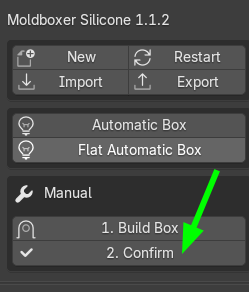
Moldboxer panel with the Confirm button highlighted.

Settings and Utilities

Export the generated mold

Select the destination folder in the panel, then click Export to save the mold files.
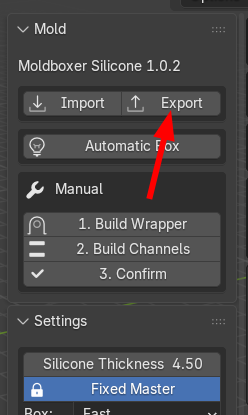
Moldboxer panel with the Export button highlighted.

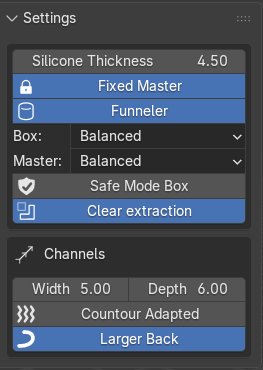
Settings menu

  • Silicone Thickness adjusts the mold wall thickness.
  • Channel Dimensions control channel size and spacing.
  • Safe Mode Box creates a solid wrapper for difficult meshes with many holes.
  • Clear Extraction cleans the extraction path along the Y axis for easier mold removal, but takes longer to process.
Moldboxer settings menu in the Blender sidebar.

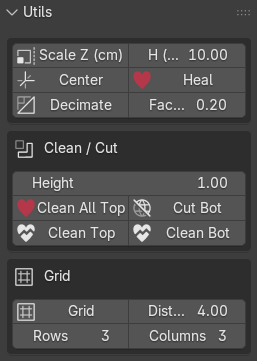
Utilities menu

  • Centering moves the model to the scene origin when needed.
  • Heal repairs bad meshes that can block mold generation.
  • Decimate reduces polygon count to speed up processing.
  • Clean Cut flattens the base or top of the model for easier mold setup.
  • Grid duplicates the master model for batch mold generation.
Moldboxer utilities menu in the Blender sidebar.

Tips

  • Check model orientation before building the wrapper.
  • Use Safe Mode Box for complex models with holes.
  • Enable Clear Extraction when mold removal looks difficult.
  • Fine-tune the channels manually to improve silicone flow.